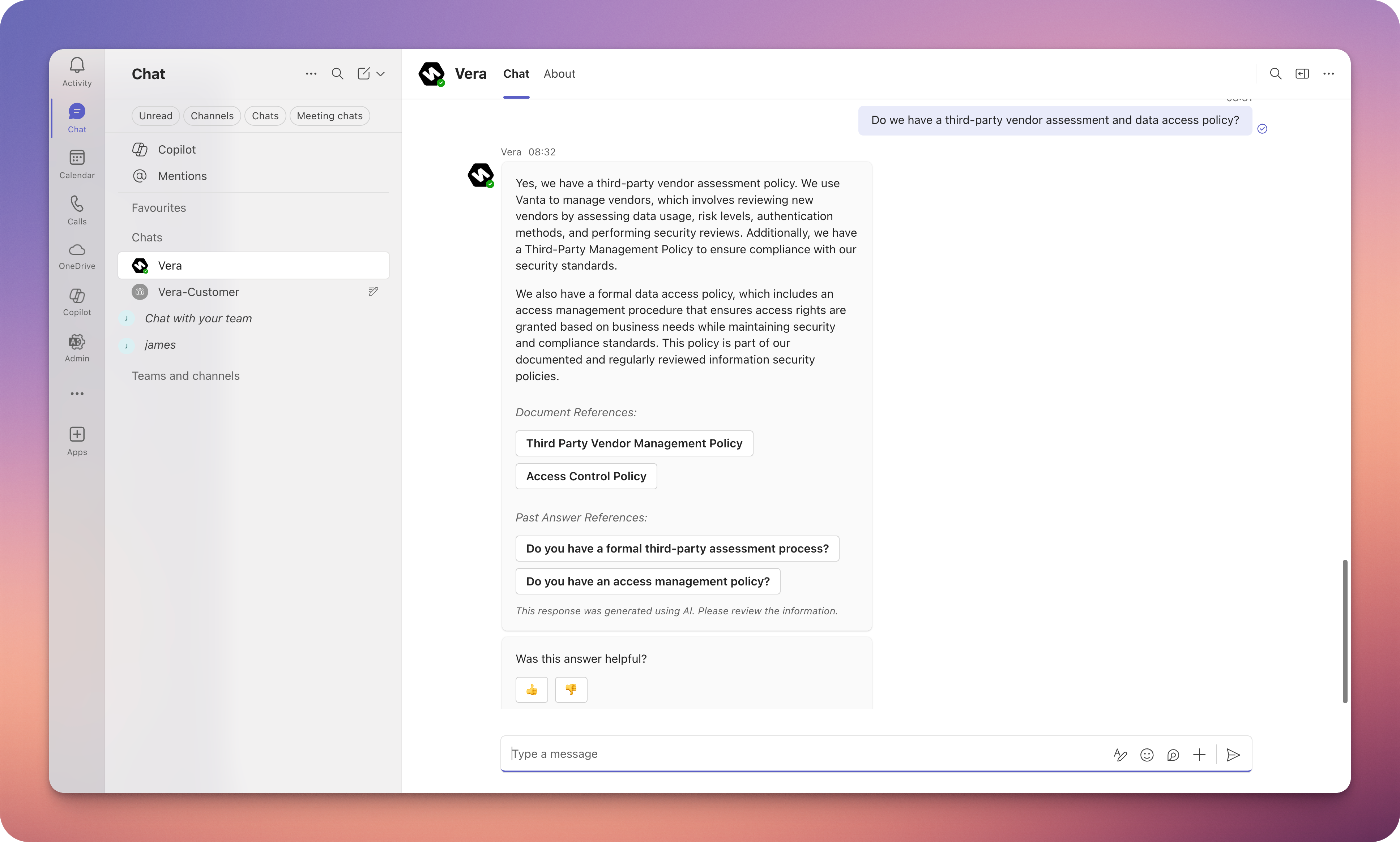
Guide on how to add Vera to your Microsoft Teams account.
You can now use Microsoft Teams to interact with our Vera AI assistant directly from your workspace. Instead of switching between platforms, your team can ask compliance and security questions in teams, channels, and chats, and get instant answers — without needing to involve other departments like security or risk.
The Microsoft Teams integration is currently in it's Beta release, if you want to try it please reach out to our support team at support@getvera.ai or on the customer support bubble on the website or platform!
Once our team has given you Beta access you will be able to navigate to our Integrations page https://app.getvera.ai/settings/company/integrations
From there, click on "Install Vera App for Teams".
You will then be able to either open the app straight away by clicking 'Open', or select a Microsoft Teams channel or chat on which to add Vera.
Navigate back to https://app.getvera.ai/settings/company/integrations and click on 'Complete Teams Integration' to complete the connection!
Just tag @Vera in your Microsoft Teams channel and ask a questions.
For example: "Do we have a third-party vendor assessment and data access policy?"
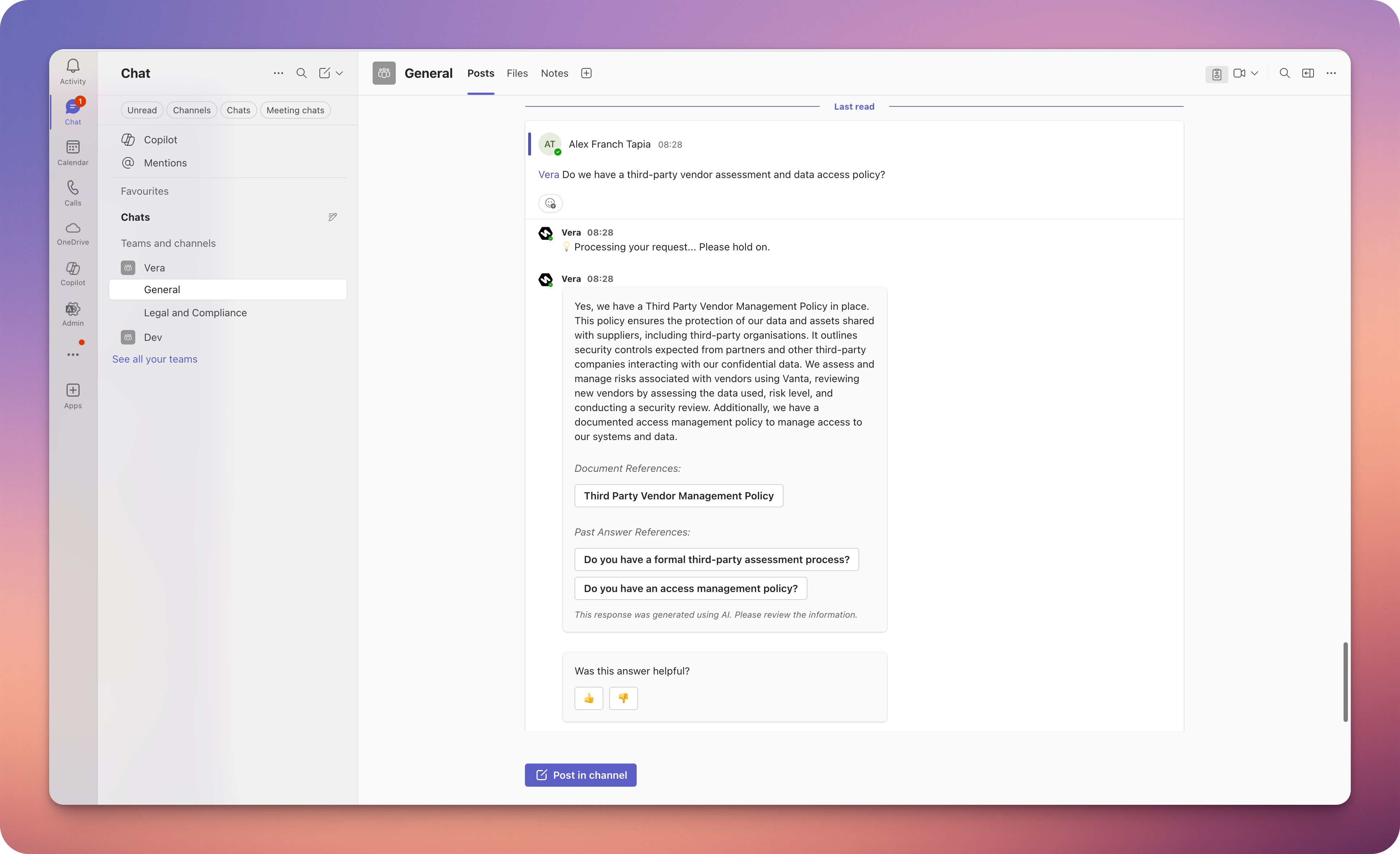
Our platform will process the request and provide a response along with relevant document references, all within seconds.
You can also have private chats with Vera AI - no need to tag Vera there!