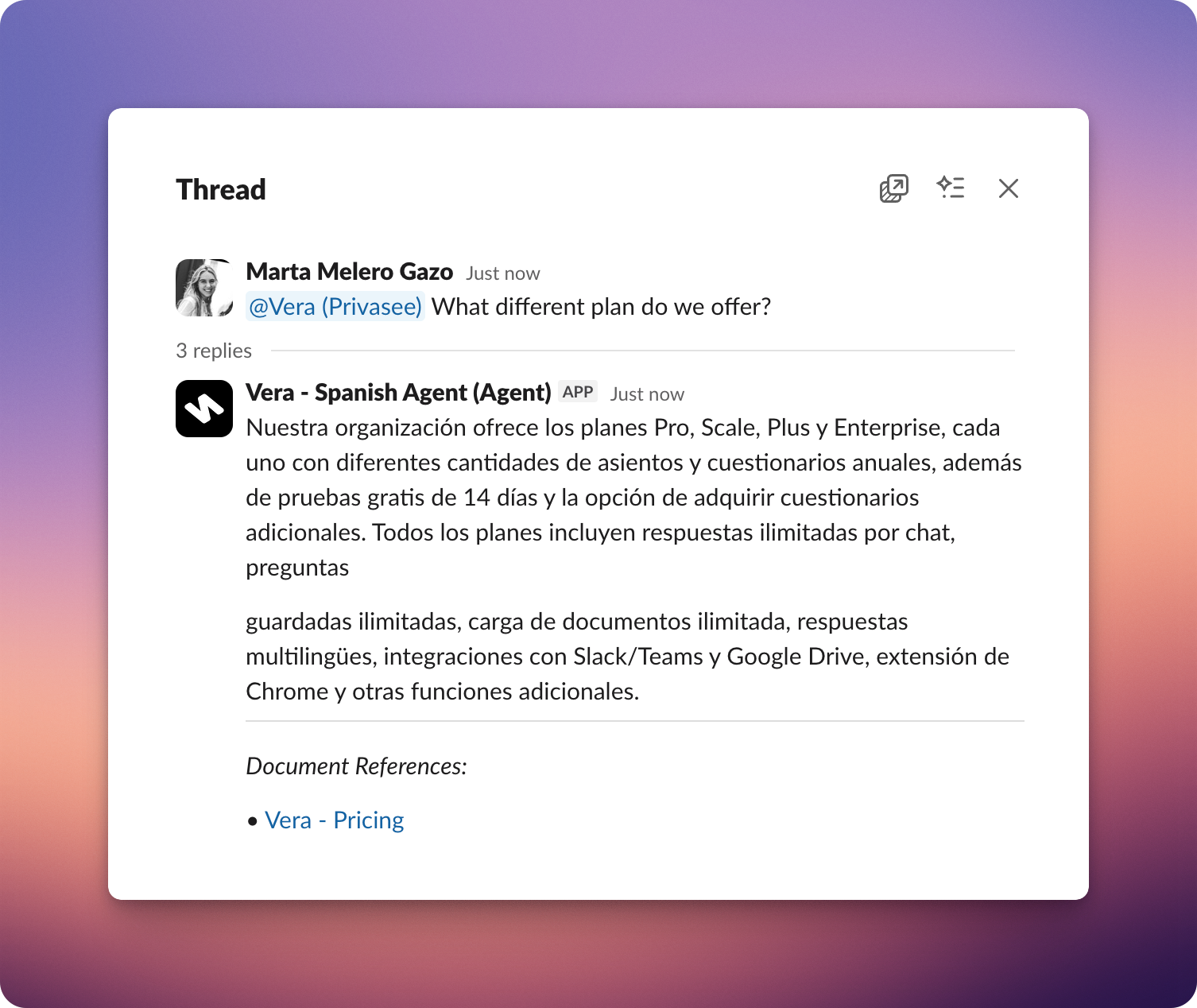
Use Agents to quickly adjust responses to all your teams' different use-cases.
You can use Agents across Vera to generate responses tailored to your needs. By selecting which Agent to interact with, you control both the sources it draws from and the way answers are phrased. This makes it easy to adapt responses to different use cases while ensuring the right context, tone, and level of detail every time.
Here are all the ways you can interact with Agents in Vera.
When working on questionnaires, you can choose which Agent provides responses. Selecting the right Agent ensures answers are drawn from the appropriate sources and written with the correct tone, language, or level of detail.
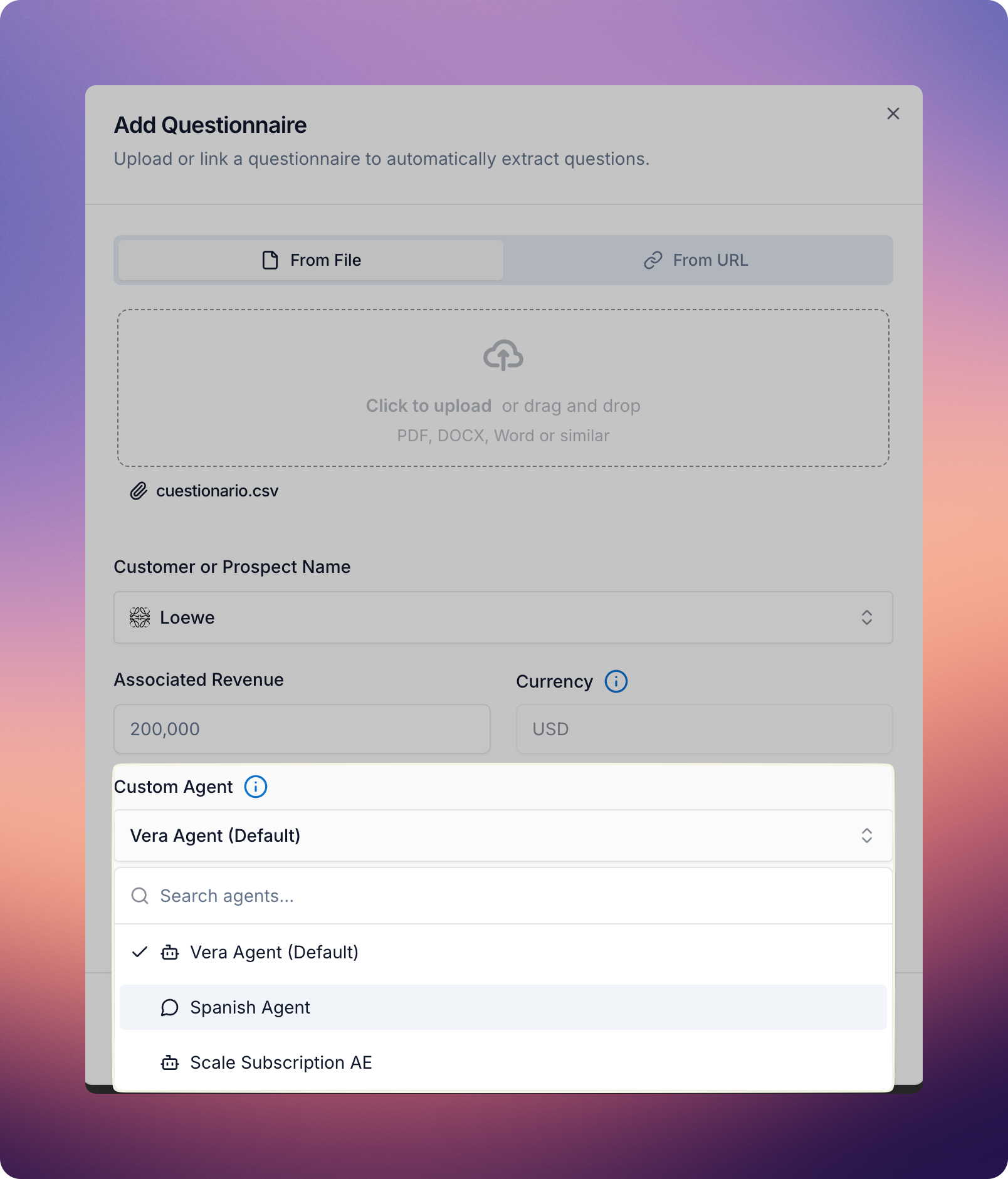
When uploading a questionnaire, you can pick the Agent from the Custom Agent dropdown. By default, your workspace’s Default Agent will be selected. See Tailor Responses to Your Needs: Build Agents for instructions on setting a default Agent.
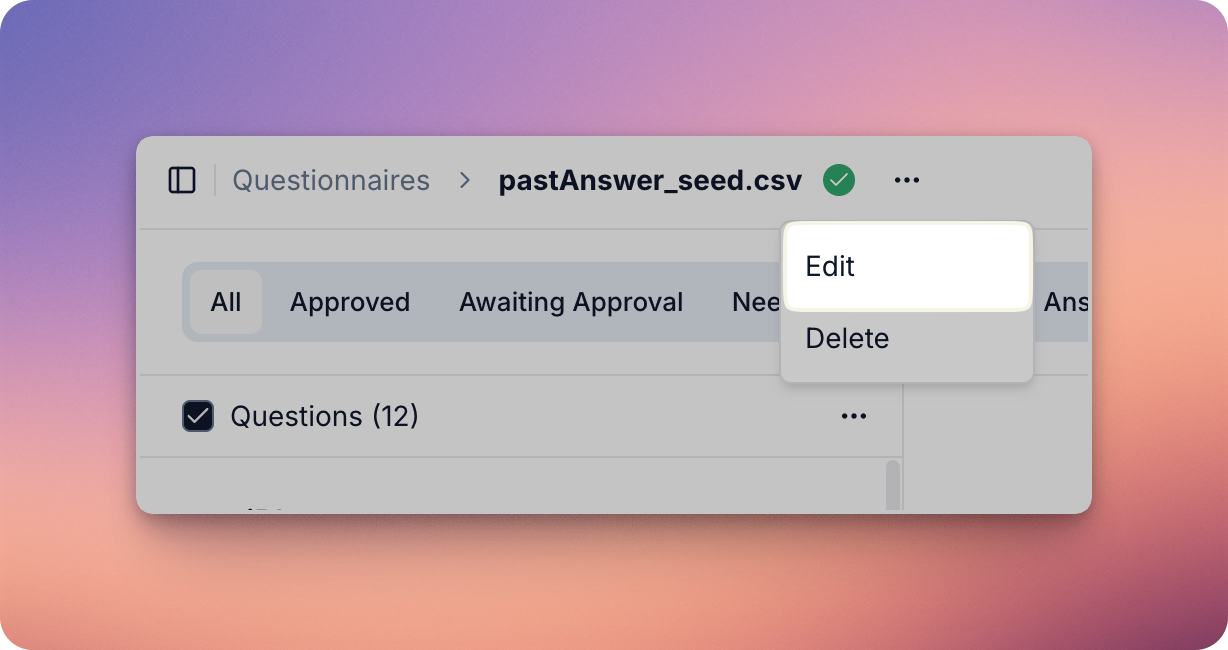
If you decide mid-way through a questionnaire that you’d prefer a different Agent, you can update this by clicking the three-dot menu next to the questionnaire name at the top of the page, selecting Edit, and changing the Custom Agent selection from the drop-down.
Note that if you change the Agent after the questionnaire has already been processed, you will need to Regenerate All questions for the new Agent to apply its responses. You can do this quickly using Bulk Actions - see Go Faster with Bulk Actions for details.
When providing feedback to the Assistant on individual questions in questionnaires, you can also choose which Agent to use. By default, this will be the Agent assigned to the questionnaire, but you can switch to another Agent at any time using the dropdown menu.
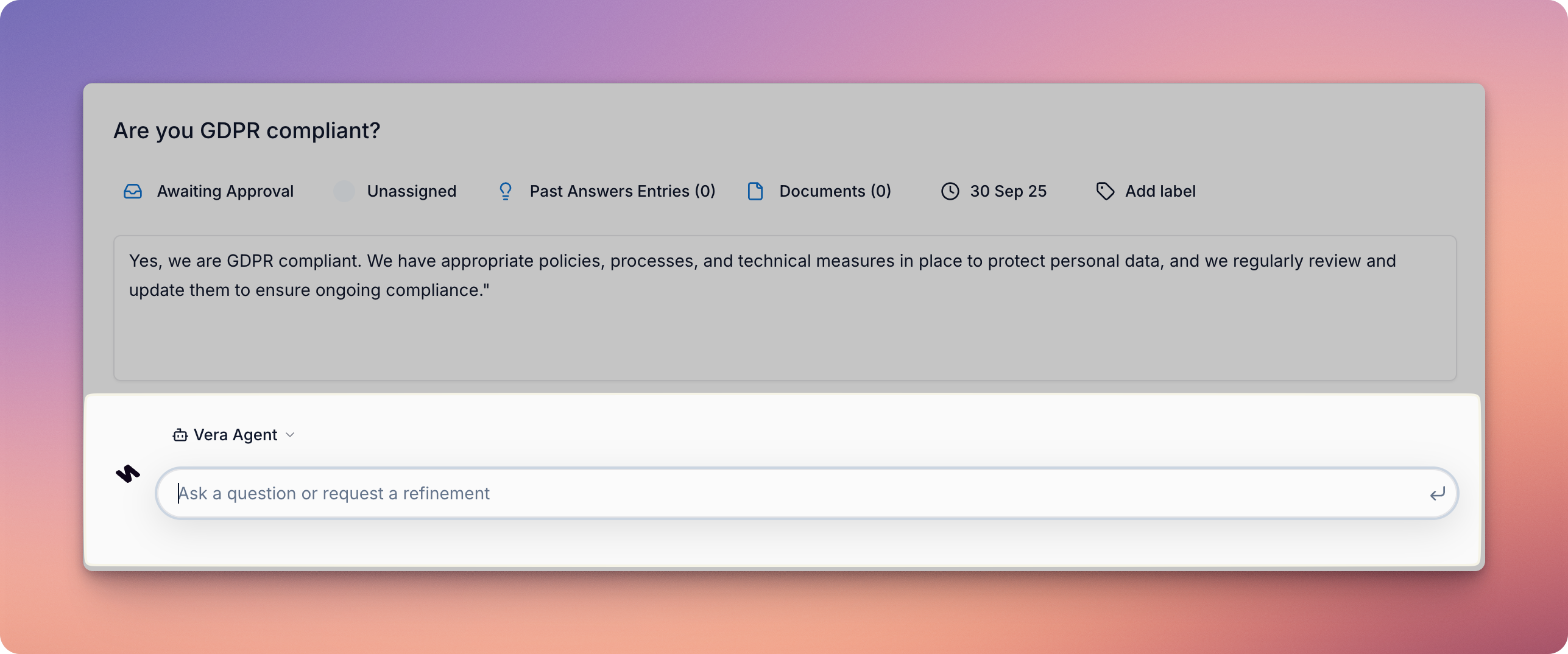
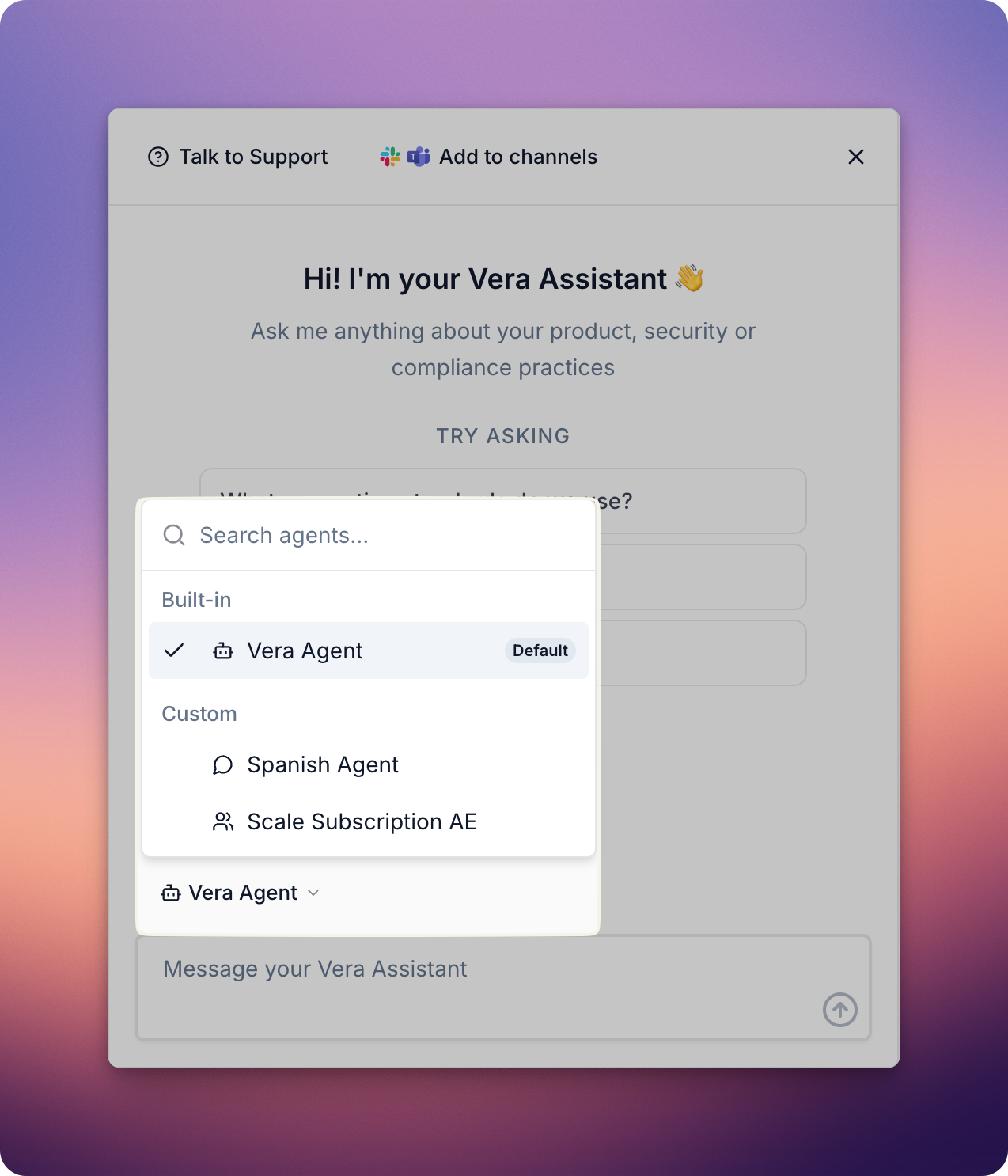
The Assistant in the bottom-right corner of the platform can be switched to interact with any of your Agents. This lets you quickly get ad-hoc answers from the perspective of a specific Agent.
If your workspace is connected to Slack, you can assign an Agent to a specific channel from the Agents page. Once assigned, all questions asked in that channel will be answered by the chosen Agent by default. Simply tag @Vera in the channel as you normally would, and the Agent’s name will appear alongside its response so you know which Agent provided the answer.
See Tailor Responses to Your Needs: Build Agents for instructions on setting up Agents to use Slack.