Past Answers ensure your team never has to answer the same question twice. Add to your Past Answer library from from questionnaires, the Vera assistant, or Slack so responses can be reused and kept consistent across the team.
Past Answers is your team’s library of approved responses — a central source of truth that Vera uses to answer future questions. Whenever a response is added to Past Answers, it becomes reusable across questionnaires, the Assistant, and integrations like Slack. This saves your team time, keeps answers consistent, and ensures every response is based on trusted, verified information.
To add to Past Answers, your role must include Write Past Answers permissions. For more information on roles and permissions, see Adding Users to Your Vera Workspace & User Permissions.
You can approve and save responses to Past Answers as you go through the review process, whether you’re working in the platform or using the extension. You can also add them once you have finalised the questionnaire.
When you’ve finished reviewing and approved all questions in a questionnaire, drag and drop the questionnaire into the Approved column on the Questionnaires tab. This will add all approved questions and answers to Past Answers.
Note that unanswered questions will not be added to Past Answers.
If you'd rather go question by question as you carry out the questionnaire review process, simply click the tick in the bottom-right corner of a response. This approves the answer and saves it to Past Answers.
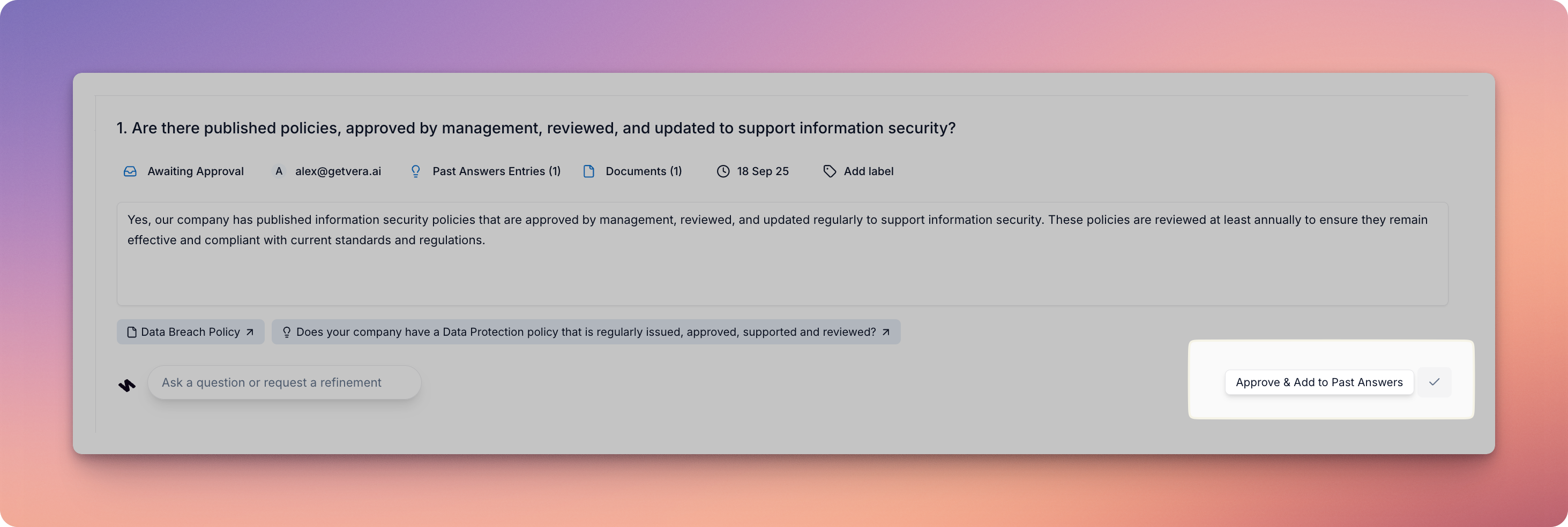
You can also approve and save multiple responses at once using Bulk Actions:
To learn more about Bulk Actions, check out Go Faster with Bulk Actions.
✨ Pro Tip: Approve responses before saving — that way you know they meet your team’s accuracy and quality standards.
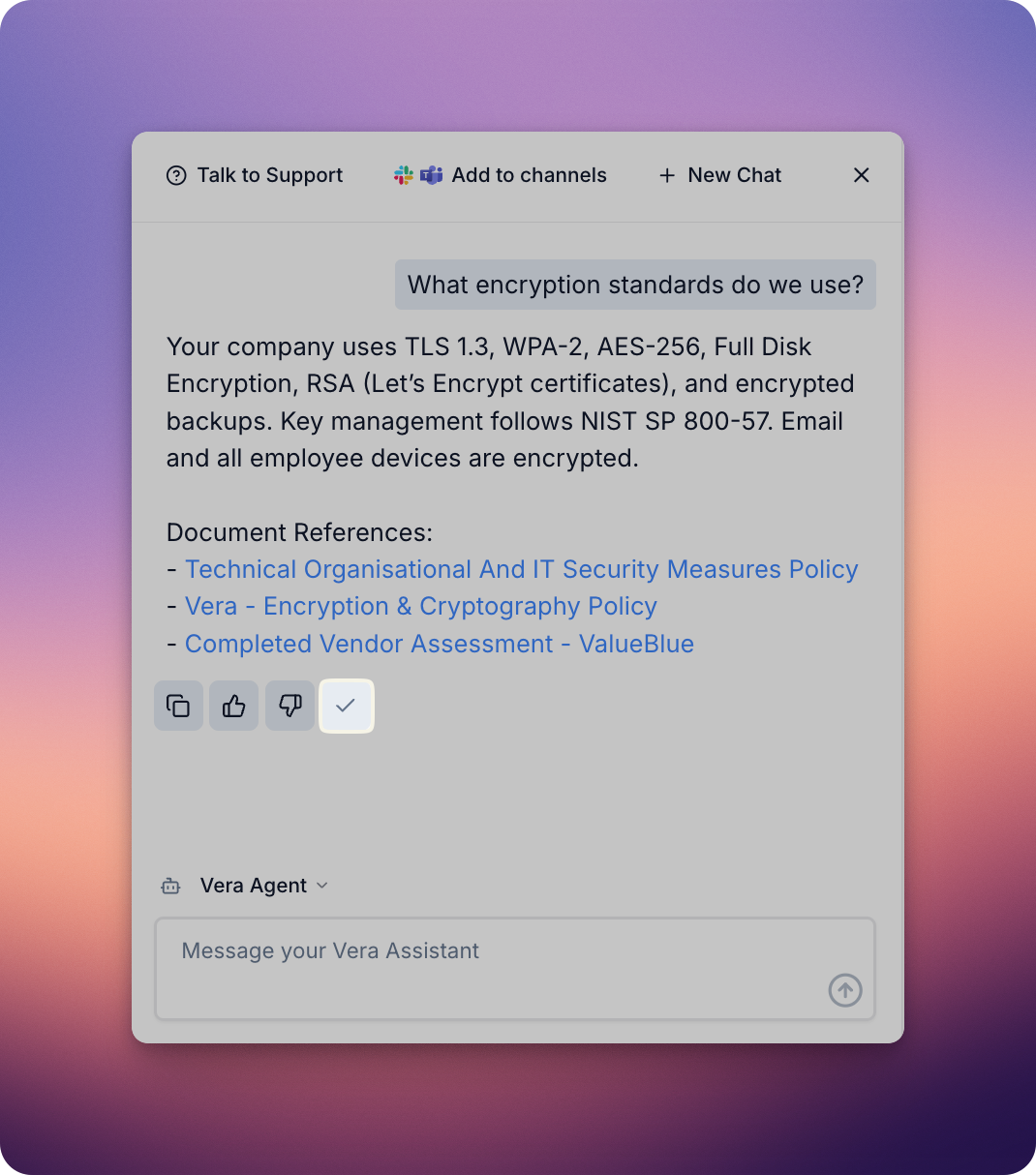
If you like a response generated by the Assistant, simply click the checkmark that appears on hover to add the question-and-answer pair to Past Answers.
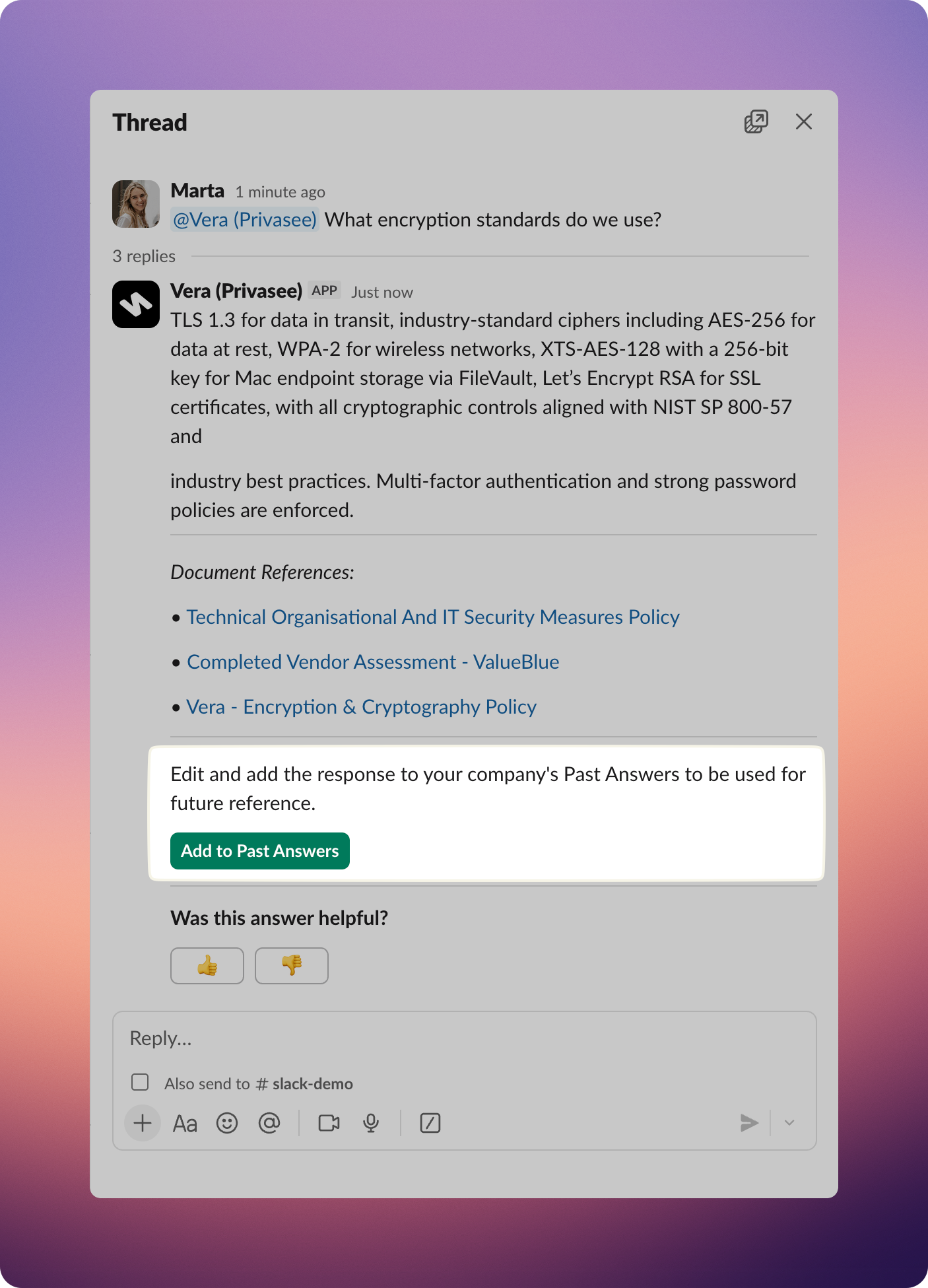
When you ask a question via Slack, you can click Add to Past Answers to store the question-and-answer pair for reuse.
For more details, see Integrating with Slack.