With your questionnaire processed, the next steps are simple: review, refine, and approve your answers so they’re ready to share.
Vera processes each question in your questionnaire and automatically sorts it into one of four categories, based on the confidence level of the AI-generated answer. As you review, you can update the status to reflect your progress. These categories are designed to help you prioritise your review and approval process efficiently.
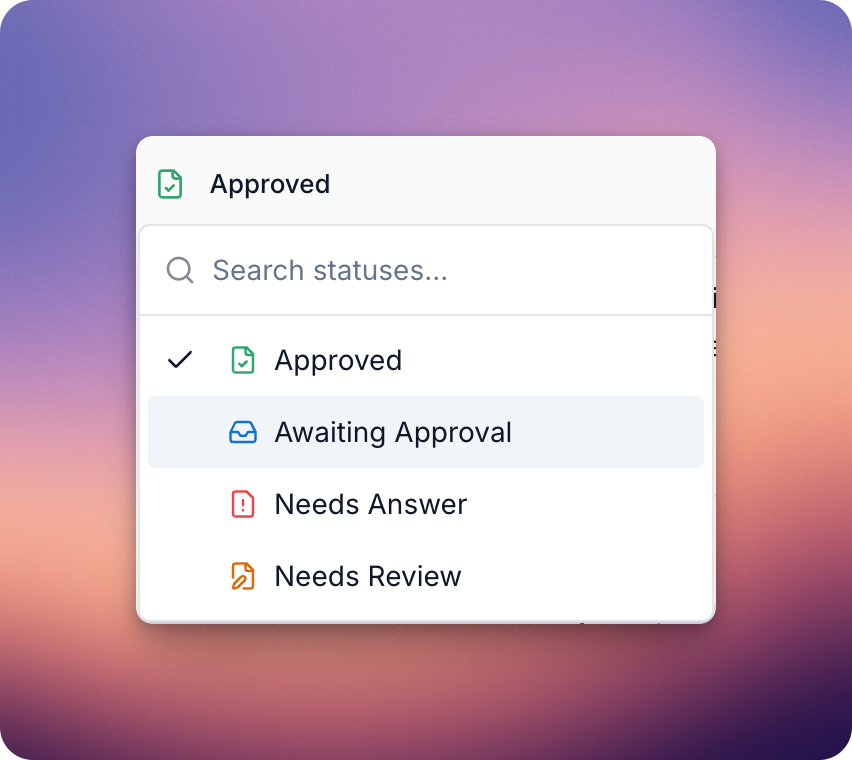
Questions which have been reviewed and manually marked as final by your team — all ready for sharing!
Vera has confidently generated a response using your sources. These suggestions have met the internal confidence threshold and just need a quick review before being marked as approved.
The platform found a possible response, but the confidence level wasn’t high enough. This can happen if sources are outdated or hold conflicting information. These responses should be manually reviewed to ensure they’re still accurate.
No content was found in your Documents or Past Answers to provide a response. Vera will not generate a placeholder or guess — you’ll need to provide a response manually to ensure information on the platform remains accurate.
✨ Pro Tip: Once you’ve reviewed responses, you can select multiple questions and use the bulk actions menu at the bottom to mark them as Approved. Make sure to check out Go Faster with Bulk Actions for the full list of actions you can take.
Once your questionnaire has been processed and categorised, you can start reviewing and refining the responses that Vera has generated. The platform provides several tools to help you edit answers and tailor the review process to your team’s workflow.
There are several ways to refine responses depending on what you need.
For more detailed guidance on how to use these tools, see Refining Responses: Make Answers Your Own.
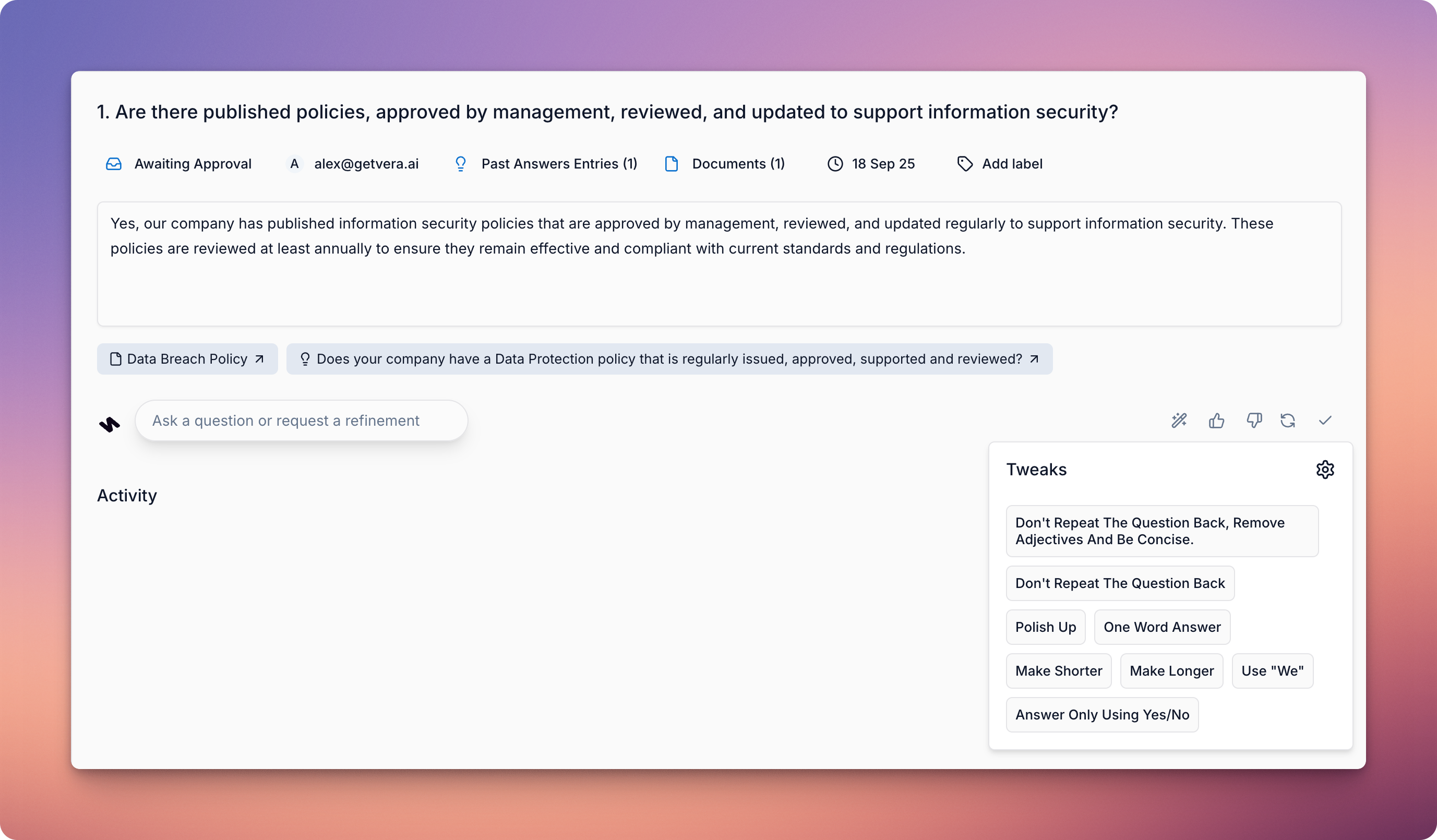
Alongside editing answers, Vera gives you tools to manage question properties, filter responses and collaborate with your team. These features help you stay organised and keep the review process running smoothly.
You can assign questions to teammates to help divide and conquer the questionnaire. This ensures the right person takes ownership — whether they are best placed to provide an answer or give the final approval. The assignee can be changed at any time, so responsibility can shift as the question moves through each stage of the review process.
Vera highlights the Documents or Past Answers used to generate a response. Each answer includes source links — if you're curious to see where Vera pulled the information from, hover over these to see the exact line or section that was referenced, or click the link to download the source.
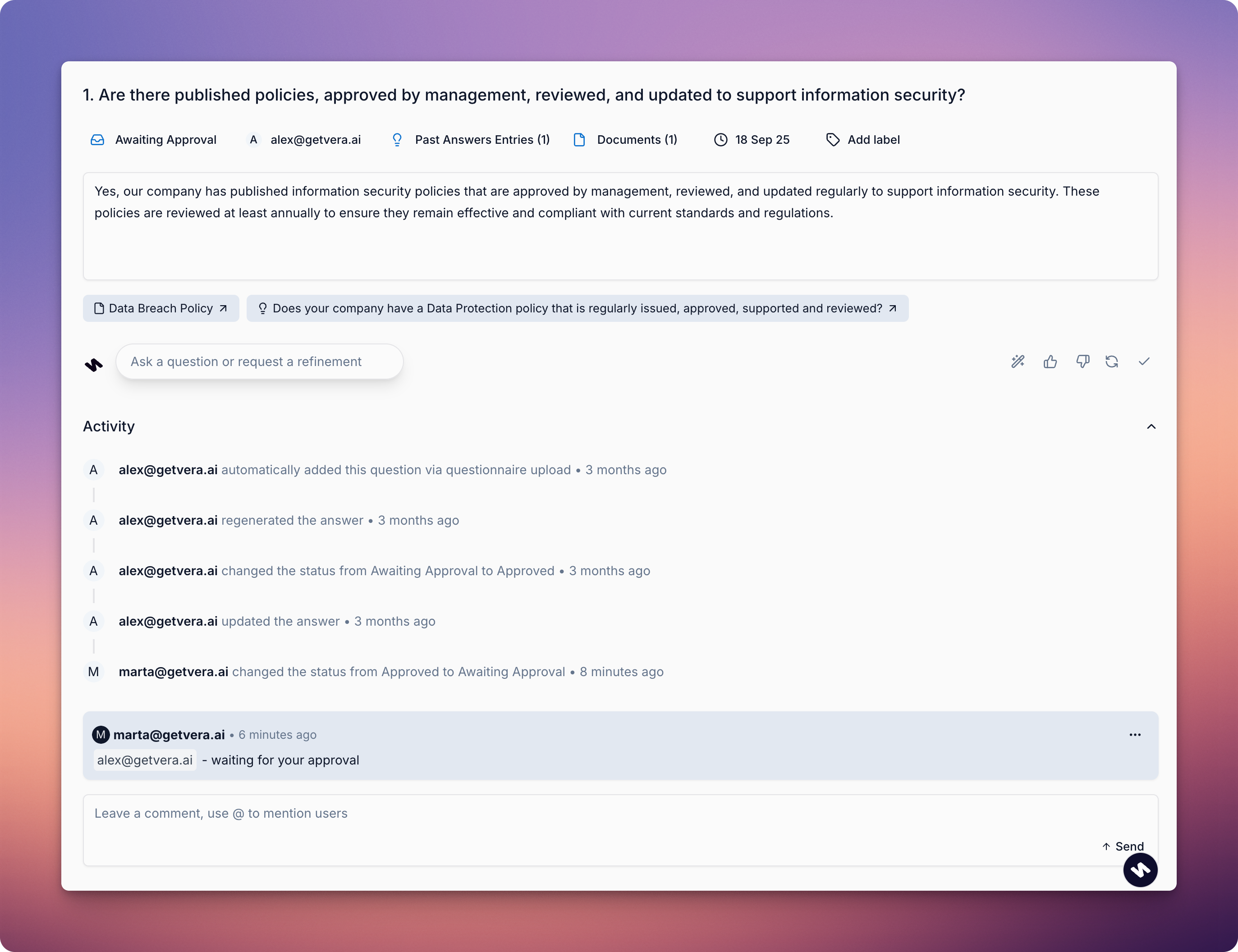
Need to flag something for your team? Just leave a comment directly on the question. Comments make collaboration easier and ensure nothing gets missed when work is handed over.
✨ Pro Tip: Connect Vera with Slack or Teams to receive notifications whenever someone leaves you a comment. Learn how to add Vera to your Slack or Teams.
Every change made to a response or its properties is recorded in the activity log. This gives you a full history of edits, so you can trace how an answer evolved and who was involved.
Filters let you focus on the questions that matter most to you. You can quickly see which questions still need answers, which need review, and which are ready for approval. You can also filter by assignee, so you only view the questions that require your attention.
Saving to Past Answers is an important step in getting the most out of Vera. It ensures accurate, approved answers are stored and reused automatically — so you never have to respond to the same question twice.
When you’re satisfied with an answer, change the status of the question to Approved, or click the tick icon in the bottom right. Approved questions and answers are automatically added to Past Answers, making them reusable for future questionnaires.
✨ Pro Tip: To make sure every approved question is saved, select all the questions in your questionnaire by clicking on the checkbox next to the question title. This will open the Bulk Actions menu. From there, click More Actions in the bottom right and choose Save All to Past Answers. Make sure to check out Go Faster with Bulk Actions for the full list of actions you can take.
Once all questions are approved, you can export the questionnaire in your desired format, ready to share or submit.